


Need to update where your orders are delivered? You can easily change your shipping address through your Unicity account.
Step-by-Step Guide:
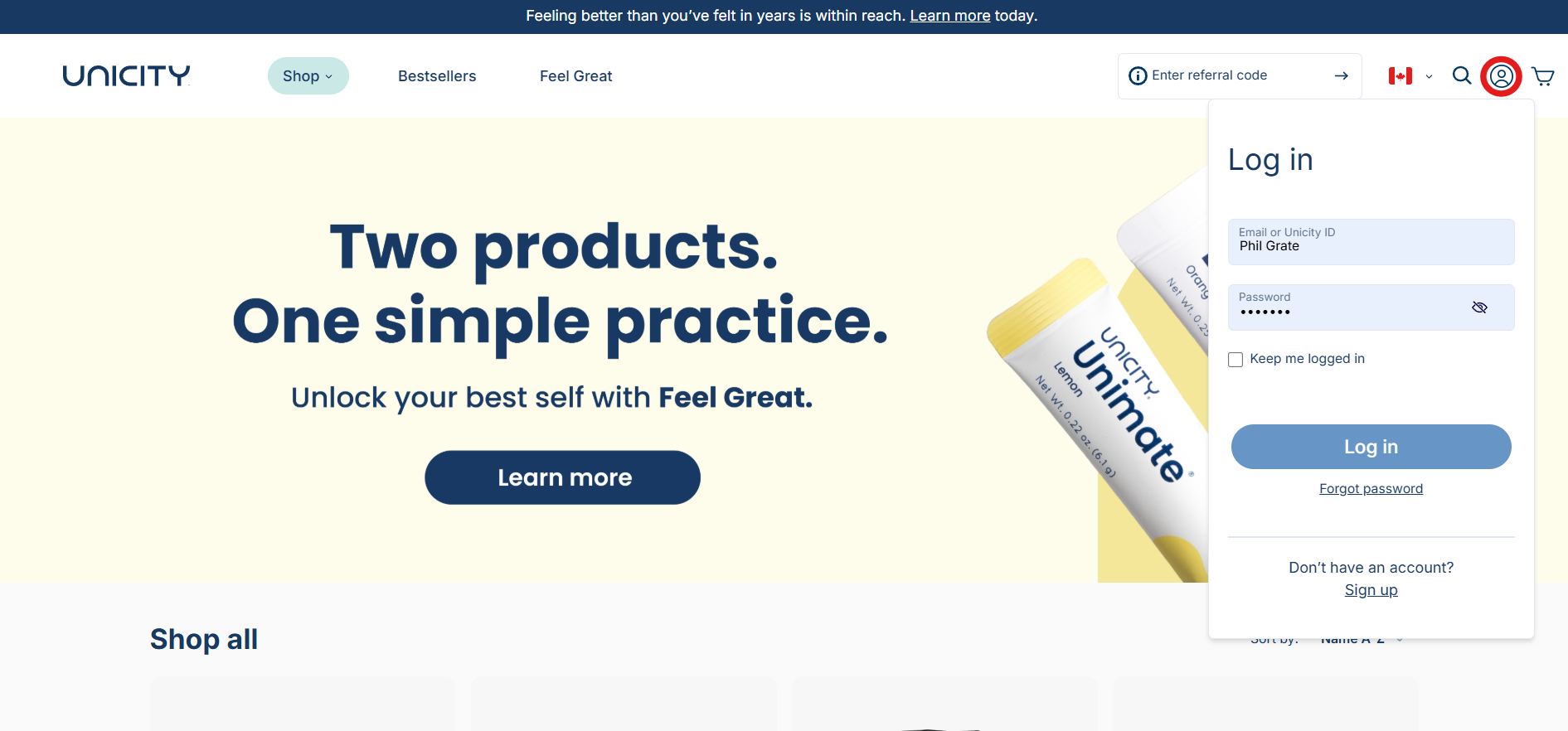
Log in to your Unicity account at shop.unicity.com.
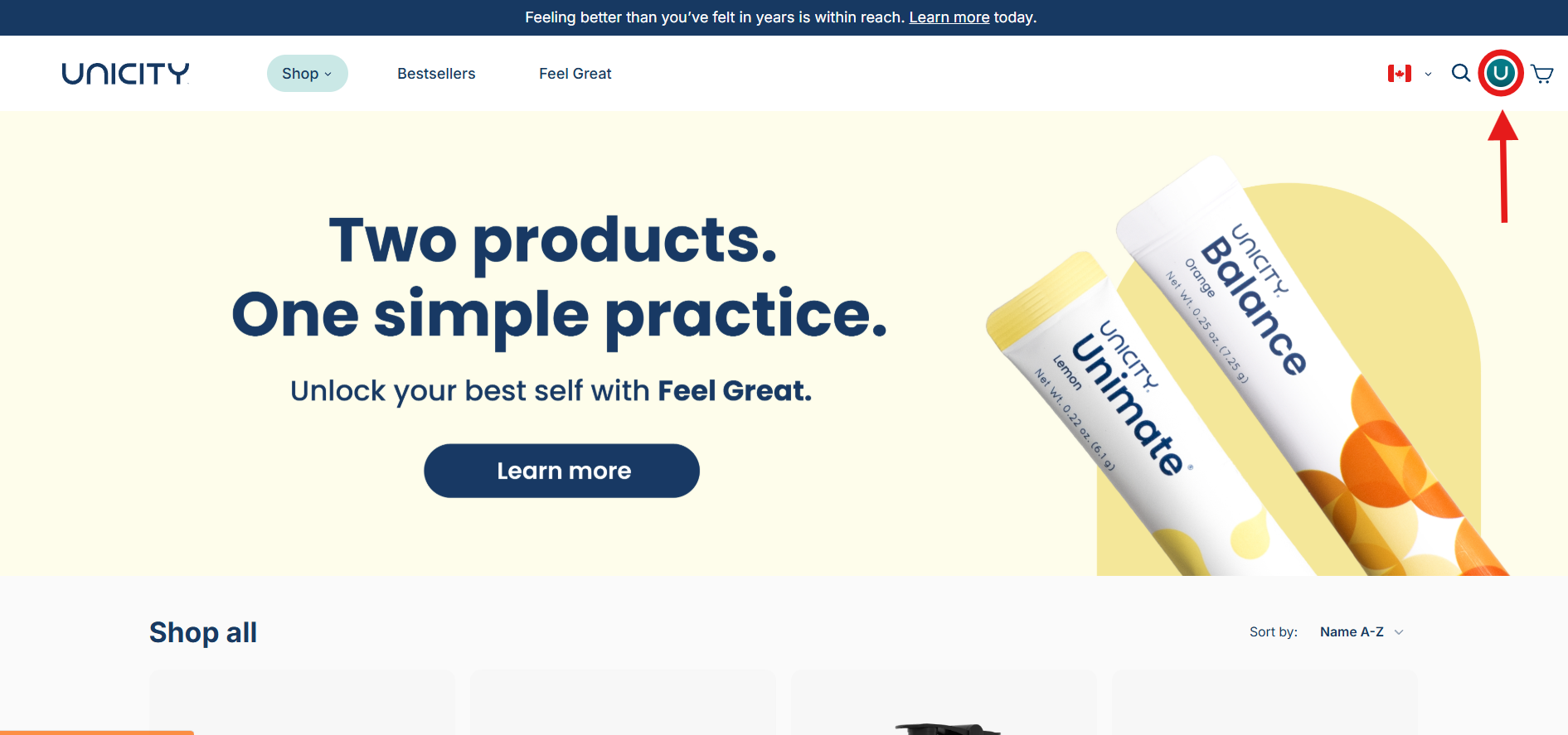
Once logged in, click on your profile icon in the upper right corner of the screen.
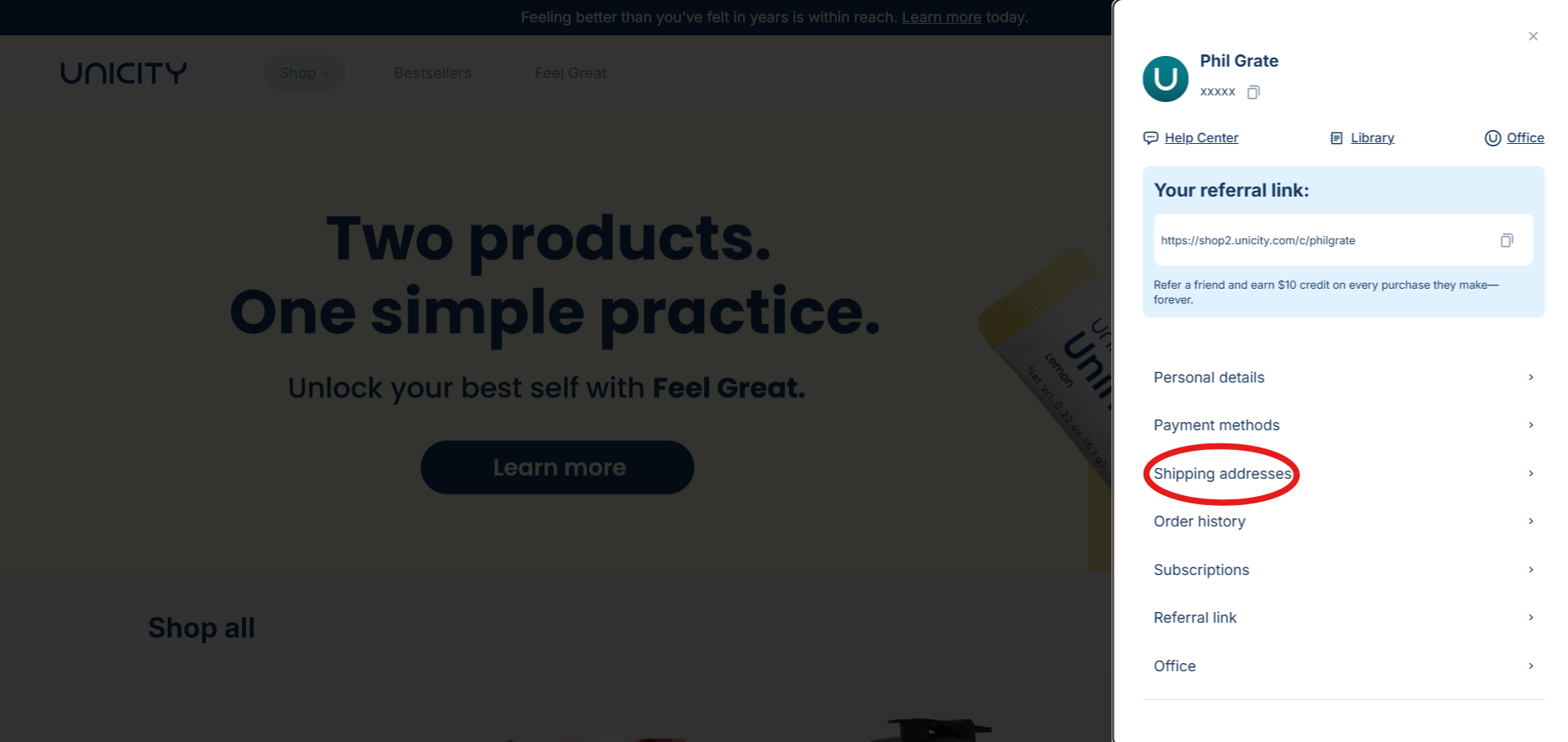
Select "Shipping Addresses" from the dropdown menu.
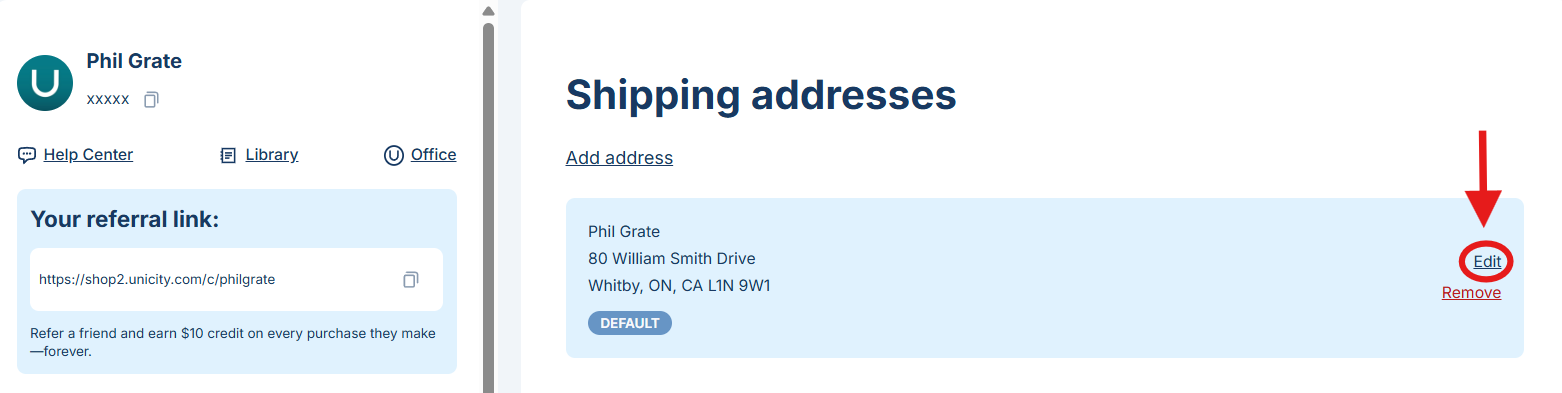
Find the address you want to update and click “Edit,” or add a new one by clicking “Add New Address.”
Enter the updated shipping address details. Don’t forget to click “Save” once you’re done!
If you have an active subscription, make sure your new address is set as the default shipping address for your subscription as well.
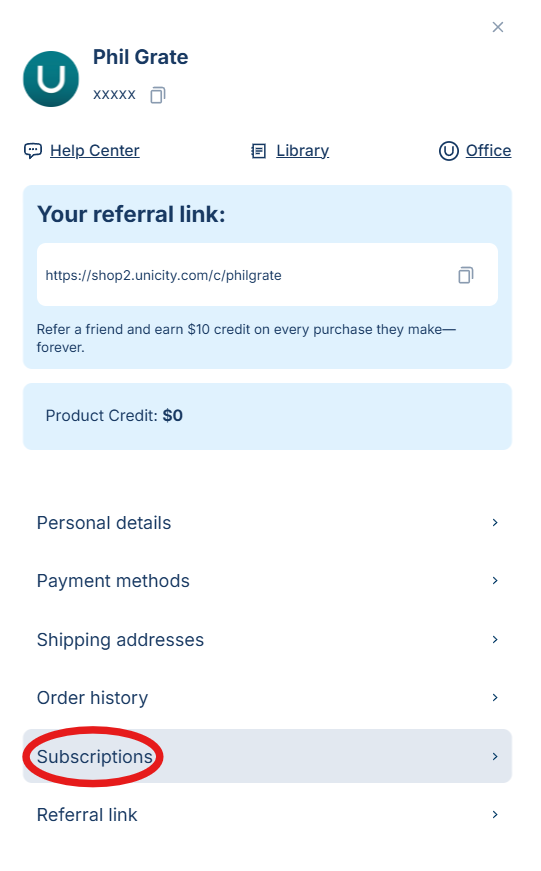
To do this, just proceed to the "Subscriptions" category from the drop-down section.
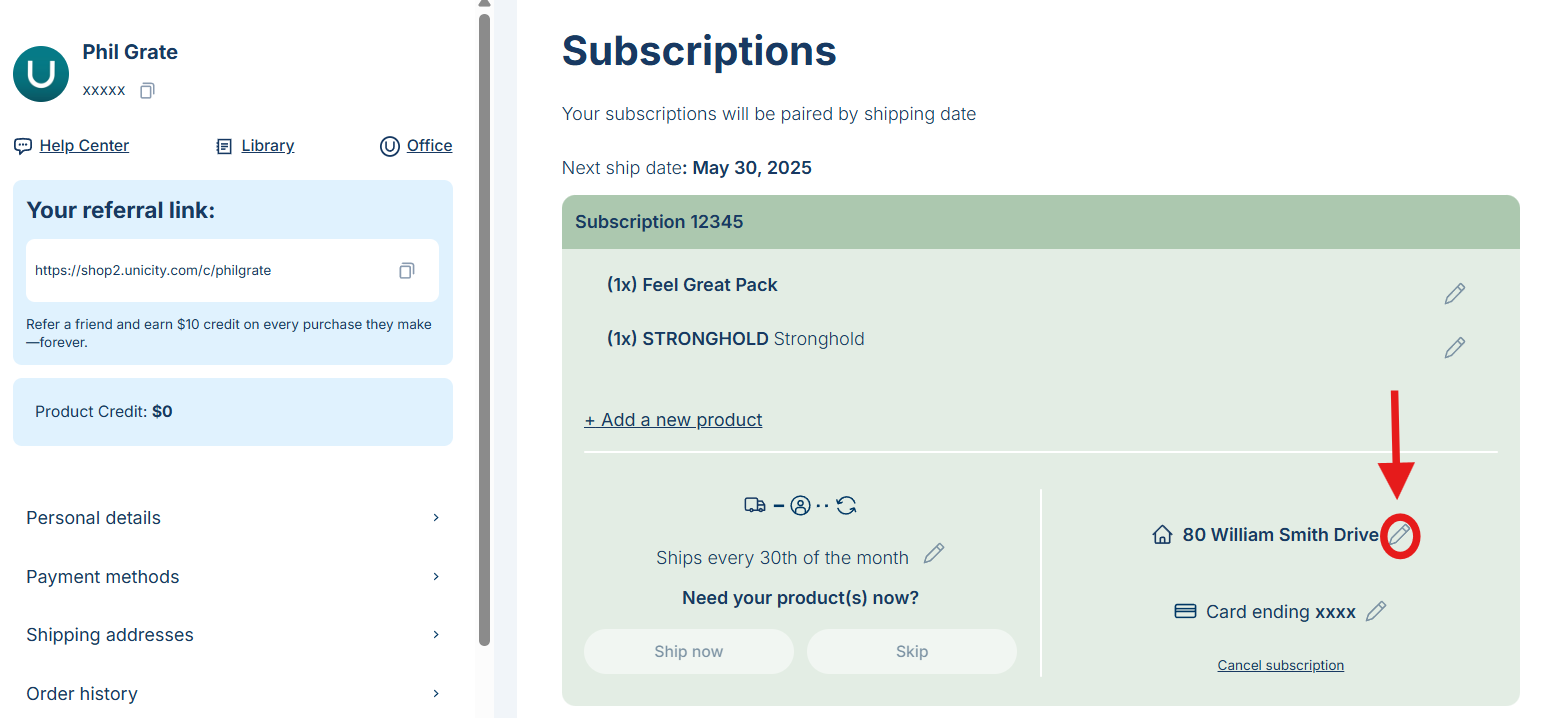
Select which subscription you'd like to edit, then proceed to press the pencil icon next to the shipping address.
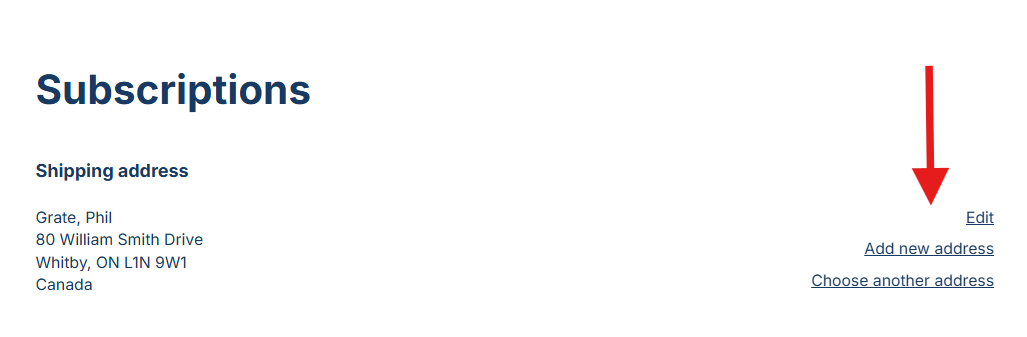
You can select either "Edit," "Add New Address," or "Choose Another Address."
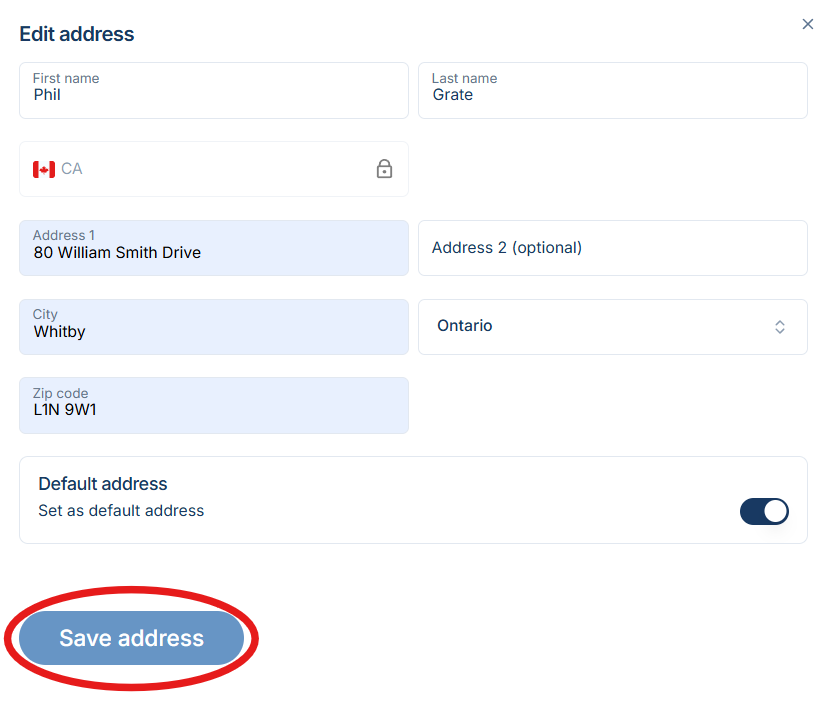
Once you edit or add a new/existing address, don't forget to press on "Save Address" to finalize the change.
Alternatively, you may send an email to [email protected] using the email address registered to your account to request a change to your shipping address. This helps ensure we can verify your identity and process the request securely.